10 Common Dell PowerEdge R640 Problems and How to Fix Them (2026 Guide)

10 Common Dell PowerEdge R640 Problems and How to Fix Them (2026 Guide)

By Anwar Yakkiparamban June 18, 2026

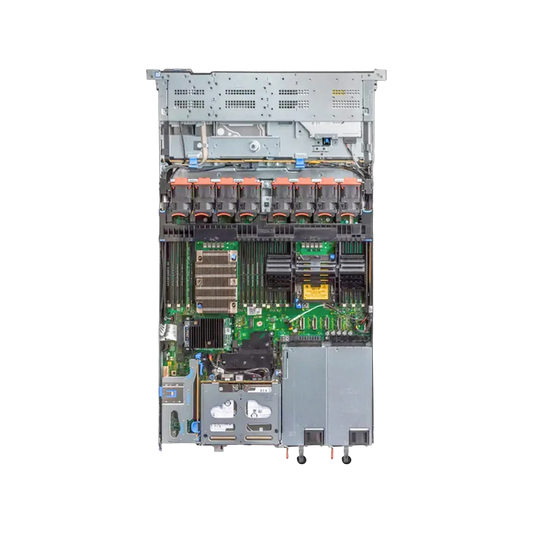
The Dell PowerEdge R640 remains a workhorse in data centers and server rooms everywhere. It's compact, reliable, and built for dense virtualization and demanding workloads. But like any hardware running around the clock, it eventually throws problems your way.

When a 1U server hosting critical VMs refuses to boot or starts flagging memory errors at 2 a.m., you need answers fast. This guide walks you through the 10 most common R640 issues we see in the field — including the symptoms to watch for, the likely root causes, and the exact steps to fix them.

In this post we cover boot failures, storage and RAID problems, thermal and fan alerts, firmware mismatches, memory errors, power supply faults, iDRAC access, network connectivity, and performance bottlenecks. Keep this handy as a troubleshooting checklist for your fleet.

1. Server Won't Power On or POST Fails

1

Server Won't Power On or POST Fails

Symptoms

No video output, the system hangs during POST, or the front panel shows an amber status LED.

Likely Causes

Loose or failed components, a corrupt BIOS, or a power delivery issue. Many 'dead' R640s are simply held up by one faulty part.

How to Fix It

  • Check the LCD panel or front status LED for a specific error code, then look it up in Dell's support documentation.
  • Reseat memory modules, the CPU heatsink, and any add-in cards.
  • Disconnect non-essential peripherals and try a minimal boot with one DIMM and one PSU.
  • Clear NVRAM by removing AC power for 30 seconds, then reconnect.
  • If POST still fails with everything minimized, the system board or CPU is the prime suspect.

2. RAID and Storage Drive Failures

2

RAID and Storage Drive Failures

Symptoms

Degraded array warnings, missing virtual disks, or a 'foreign configuration' message at boot.

Likely Causes

A failed physical drive, a dropped backplane connection, or a PERC controller that lost its configuration.

How to Fix It

  • Enter the PERC BIOS (Ctrl+R during boot) or use the iDRAC Storage view to identify the failed drive.
  • Replace the failed disk with a compatible model and let the array rebuild.
  • If you see a foreign configuration after replacing the controller, import it carefully — never clear it unless you're certain the data is expendable.
  • Reseat the backplane cables if multiple drives drop at once.
Quick tip: Always confirm your last backup completed before touching a degraded array.

3. Thermal Alerts and Overheating

3

Thermal Alerts and Overheating

Symptoms

iDRAC logs 'temperature warning' events, the system throttles performance, or it shuts down to protect itself.

Likely Causes

Blocked airflow, failed fans, dust buildup, or high ambient temperature in the rack.

How to Fix It

  • Confirm rack inlet temperature stays within Dell's recommended range (typically 10–35°C).
  • Clear dust from intake vents and verify blanking panels are installed in empty rack slots.
  • Check that drive blanks and PCIe filler brackets are in place — missing ones disrupt airflow.
  • Review the thermal profile in iDRAC and confirm it matches your workload.
Quick tip: A single missing drive blank can raise internal temps enough to trigger throttling.

4. Excessive Fan Noise or Fans at Full Speed

4

Excessive Fan Noise or Fans at Full Speed

Symptoms

Fans run loud and fast even at idle, often right after adding new hardware.

Likely Causes

The R640 ramps fans to maximum when it can't read sensor data from a third-party PCIe card or non-Dell NVMe drive.

How to Fix It

  • Update to the latest BIOS and iDRAC firmware, which often improve fan logic.
  • In iDRAC, adjust the Fan Speed Offset or Thermal Profile settings.
  • For unsupported add-in cards, enable a custom minimum fan speed rather than letting the system default to full blast.
  • Verify all fans report healthy in the iDRAC hardware inventory — a single failed fan forces the rest to compensate.

5. Firmware and Driver Mismatches

5

Firmware and Driver Mismatches

Symptoms

Unexplained instability, devices not detected, or features that worked yesterday suddenly failing.

Likely Causes

BIOS, iDRAC, PERC, and NIC firmware versions drift apart over time, especially across a mixed fleet.

How to Fix It

  • Use the Dell Lifecycle Controller or iDRAC to run a firmware update from the integrated repository.
  • Apply Dell's tested firmware bundles rather than updating components piecemeal.
  • Match operating system drivers to the firmware revision you've installed.
  • Standardize a baseline firmware version across identical R640 nodes to simplify support.
Quick tip: Keeping a documented firmware baseline saves hours when you're chasing intermittent faults.

6. Memory (DIMM) Errors

6

Memory (DIMM) Errors

Symptoms

Correctable or uncorrectable ECC errors in the System Event Log, reduced usable memory, or random reboots.

Likely Causes

A failing DIMM, an unsupported memory configuration, or modules seated in the wrong slots.

How to Fix It

  • Check the System Event Log in iDRAC to identify the exact DIMM slot reporting errors.
  • Reseat the flagged module and clean the contacts gently.
  • Confirm your population order follows Dell's memory configuration guidelines for the R640.
  • If errors persist on the same slot after swapping modules, suspect the system board.
Quick tip: Mixing DIMM sizes or speeds is a frequent and easily overlooked cause of instability.

7. Power Supply Unit (PSU) Faults

7

Power Supply Unit (PSU) Faults

Symptoms

An amber PSU LED, redundancy-lost warnings, or unexpected shutdowns under load.

Likely Causes

A failed PSU, a tripped circuit, or mismatched PSU wattages in a redundant pair.

How to Fix It

  • Check each PSU LED: green means healthy, amber points to a fault.
  • Confirm both supplies have the same wattage rating — the R640 won't run redundant power with mismatched units.
  • Test by swapping the power cable to a known-good outlet or PDU port.
  • Replace a failed PSU — these are hot-swappable, so you can do it without downtime in a redundant setup.

8. iDRAC Access and Login Problems

8

iDRAC Access and Login Problems

Symptoms

You can't reach the iDRAC web interface, login fails, or the management port shows no link.

Likely Causes

A misconfigured network, forgotten credentials, or stale iDRAC firmware.

How to Fix It

  • Confirm the dedicated iDRAC NIC has a cable and a valid IP — check via the front LCD panel.
  • Reset iDRAC to defaults using the front-panel button (press and hold per Dell's instructions) if you're locked out.
  • Verify the iDRAC isn't sharing a LOM port that's been reassigned.
  • Update iDRAC firmware if the web console loads partially or behaves erratically.
Quick tip: A full iDRAC reset clears most access headaches without affecting your OS or data.

9. Network Connectivity Drops

9

Network Connectivity Drops

Symptoms

Intermittent packet loss, a NIC that won't link, or throughput far below expectations.

Likely Causes

Outdated NIC drivers, a bad SFP+ transceiver, faulty cabling, or a switch-side configuration mismatch.

How to Fix It

  • Swap the cable and transceiver first — these are cheap and frequent culprits.
  • Update the NIC firmware and OS drivers to a matched pair.
  • Confirm speed and duplex settings agree on both the server and switch.
  • Check the iDRAC network inventory to rule out a hardware fault on the adapter itself.
Quick tip: If one port works and another doesn't, you've likely narrowed it to the cable, transceiver, or switch port.

10. Performance Bottlenecks Under Load

10

Performance Bottlenecks Under Load

Symptoms

High latency, slow application response, or CPUs that never reach expected utilization.

Likely Causes

Conservative power settings, storage saturation, or a BIOS profile tuned for efficiency over performance.

How to Fix It

  • Set the System Profile in BIOS to Performance for latency-sensitive workloads.
  • Disable C-states and enable Turbo Boost if your workload benefits from sustained clock speeds.
  • Check disk I/O and RAID controller cache settings — a disabled write cache cripples storage performance.
  • Monitor with iDRAC telemetry or your hypervisor tools to confirm where the real bottleneck lives.
Quick tip: Are your CPUs sitting idle while users complain about lag? The fix is often a single BIOS profile change.

Final Thoughts

Most R640 issues trace back to a short list of causes: loose components, drifting firmware, restricted airflow, or settings that don't match your workload. The good news is that the server's built-in tools — especially iDRAC and the Lifecycle Controller — give you everything you need to diagnose and fix problems quickly.

Your next step is simple. Bookmark this guide, then run a quick health check on your R640 fleet: confirm firmware baselines, review the System Event Log, and verify airflow and redundancy. Catching small issues early keeps your servers running reliably and your phone quiet at 2 a.m.